
Wiring a network wall jack is a straightforward 30-minute project that requires only a Cat5e or Cat6 cable, a keystone jack, and a punch-down tool. The process involves stripping the cable sheath, arranging individual wires according to T568A or T568B color standards, and punching them into the jack’s color-coded terminals to create a permanent, professional-grade Ethernet connection in your home or office.
This task appeals to anyone tired of exposed cables running along baseboards or looking to extend their network infrastructure properly. Modern keystone jacks use an Insulation Displacement Connector design that cuts through wire insulation automatically as you seat each conductor, eliminating the need for wire stripping or soldering. The result is a clean, tested connection that matches commercial installation quality.
Understanding the wiring standard you choose matters more than which one you pick. Both T568A and T568B work perfectly for home networks, but consistency across your installation prevents frustrating troubleshooting sessions later. The most common error isn’t in wire placement but in leaving too much untwisted cable exposed, which introduces crosstalk and degrades signal quality at gigabit speeds.
This guide walks through the complete installation process, from selecting compatible components to verifying your finished connection with a cable tester. Whether you’re adding a single jack behind a desk or wiring an entire room, the technique remains identical.
Understanding Network Wall Jack Components
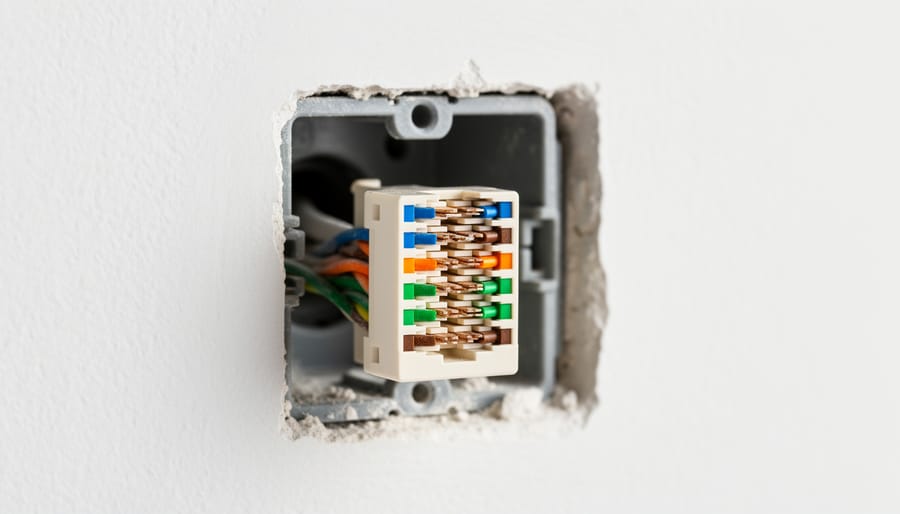
A network wall jack assembly consists of several distinct components that work together to create a permanent termination point. The keystone jack itself, the modular insert that snaps into the faceplate, houses eight color-coded punch-down terminals where individual wire pairs get secured. These terminals use an insulation displacement connection (IDC) system that pushes the wire into a slot, cutting through the insulation to make electrical contact while trimming excess wire simultaneously. The faceplate mounts to your wall and holds one or more keystone jacks, providing a finished appearance and protection. Behind it, the mounting bracket (either a low-voltage bracket or old-work box) secures everything to the wall structure and creates a stable anchor point for the installation.
Understanding cable categories helps you match the right jack to your network infrastructure. Cat5e jacks support speeds up to 1 Gigabit per second and work fine for most home applications, while Cat6 jacks handle 10 Gbps over shorter runs and feature tighter tolerances in their terminals to reduce crosstalk. Cat6a jacks extend that 10 Gbps capability to the full 100-meter distance and include more robust shielding, making them ideal for future-proofing or high-performance networks. The jack category must match or exceed your cable rating, you can’t achieve Cat6 performance by terminating Cat6 cable to a Cat5e jack. For perspective on higher-end options, the debate around Cat8 vs Cat6a matters more for data centers than residential installations.
T568B has become the de facto standard in the United States and most commercial installations, following the sequence white-orange, orange, white-green, blue, white-blue, green, white-brown, brown. T568A swaps the orange and green pairs, making it common in government and some residential settings. The keystone jack’s terminals display the color sequence for your chosen standard, typically with T568B printed on one side and T568A on the reverse. Most installers default to T568B unless specific requirements dictate otherwise, simplifying future expansions and reducing confusion when multiple people work on the same network infrastructure.
Tools and Materials You’ll Need
Before you start your installation, gather everything you’ll need to avoid mid-project trips to the hardware store. Having the right tools makes this job significantly easier and ensures a professional, reliable result.
Required Tools
The punch-down tool is your most critical purchase, it seats wires into the keystone jack terminals and trims excess in one motion. Look for models with 110/Krone blade compatibility and an adjustable impact setting. While expensive professional versions exist, budget-friendly options work fine for home installations. You’ll also need basic wire stripping tools to remove the cable’s outer jacket without nicking the internal wires. A cable tester verifies your work after installation, even an inexpensive model that checks continuity and wire order will catch most wiring mistakes.
For mounting, you’ll need a drill with bits sized for your wall type, a drywall saw or utility knife for cutting openings, and a screwdriver (typically Phillips head). A fish tape or wire pulling tool helps route cable through walls, though you can sometimes skip this for short runs in accessible spaces.
Essential Materials
Start with the appropriate network cable for your needs. Cat5e handles gigabit speeds for most home applications, Cat6 provides headroom for future upgrades and better crosstalk resistance, while Cat6a supports 10-gigabit speeds over longer distances. When you choose quality Ethernet cable, verify it’s solid conductor (not stranded) since keystone jacks require solid wire for proper punch-down connections.
- Keystone jack rated for your cable type (Cat5e, Cat6, or Cat6a)
- Single-gang low-voltage mounting bracket or old-work box
- Faceplate with appropriate keystone openings
- Mounting screws (often included with brackets and faceplates)
- Cable staples or J-hooks for securing runs
- Labels and permanent marker for documentation
Optional but Helpful
A stud finder prevents drilling into framing or existing wiring. Cable lubricant eases long pulls through conduit. Quality punch-down technique tools with ergonomic grips reduce hand fatigue on multi-jack projects. Keep a flashlight handy for inspecting wall cavities and tight spaces.
Safety Precautions and Pre-Installation Checks
Before you start punching down wires, take a moment to address potential hazards and confirm your workspace is safe. Cutting into walls or drilling holes without checking what’s behind them can damage existing utilities or create serious safety risks.
First, locate and avoid electrical wiring in your walls. Use a stud finder with wire-detection capability to scan the installation area. Electrical cables typically run vertically from outlets and switches or horizontally along the top and bottom plates of wall studs. Keep your network cable runs at least six inches away from electrical wiring to minimize electromagnetic interference and reduce the risk of accidental contact during installation.
Check for obstacles inside the wall by drilling a small pilot hole and using a bent coat hanger or inspection camera to probe the cavity. Look for fire blocks (horizontal blocking between studs), insulation, existing cables, and pipes that could complicate your cable run.
Verify your cable meets local building codes and application requirements. Plenum-rated cables (CMP) are required in spaces used for air circulation, such as drop ceilings and raised floors in commercial buildings. Riser-rated cables (CMR) are needed for vertical runs between floors. Standard CM or CMX cables work for most residential in-wall installations, but always confirm your local electrical code requirements.
If you encounter complex electrical panels, lack experience working with building structures, or need to run cables through fire-rated walls requiring proper sealing, call a licensed low-voltage installer or electrician.
Step-by-Step Network Wall Jack Wiring Process
Step 1: Run the Cable to the Wall Location
Determine where your network cable run will originate, typically a router, network switch, or patch panel in a central location. Measure the distance from this source to your wall jack location, following the actual path the cable will take through walls, along baseboards, or through ceiling spaces. Add at least 12-18 inches of extra cable at each end; this slack proves essential for making connections without strain and allows for future adjustments or repairs.
When pulling cable through walls, use a fish tape or flexible rod to guide the cable path. Feed the cable gently to avoid kinking or crushing, which degrades performance. If running cable horizontally through stud bays, drill holes at least 1.25 inches from the stud edge to prevent future nail penetration. For vertical runs behind drywall, drop the cable from the attic or pull it up from the basement, securing it loosely every few feet to prevent sagging.
Leave the cable coiled neatly at the wall jack location with enough length extending that you can comfortably work on it. This extra cable also matters during EThernet cable testing later, giving you flexibility to reposition equipment or troubleshoot connections without redoing the entire run.
Step 2: Prepare the Cable and Mounting Box
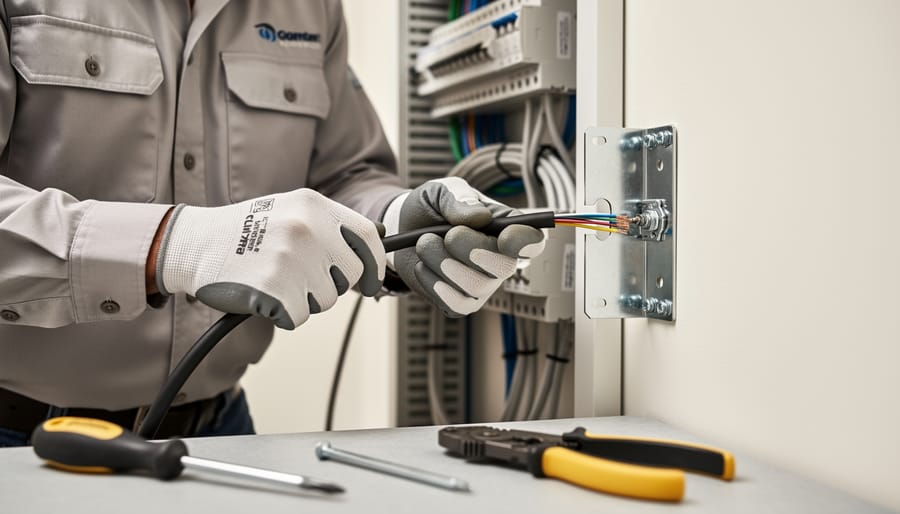
Once your cable reaches the wall location, strip back approximately 2-3 inches of the outer jacket using your wire stripper or cable jacket stripper. Score the jacket lightly in a circular motion, then pull it away from the twisted pairs. Take care not to nick the insulation on the individual wires inside, damaged wire insulation can cause shorts or signal degradation.
Next, install your low-voltage mounting bracket (also called an old-work box or single-gang low-voltage ring). Position it at the desired height, typically matching other outlets in the room for a professional appearance. Trace the bracket outline on the wall, cut the drywall opening with a utility knife or drywall saw, then secure the bracket using its built-in tabs or screws. The bracket should sit flush against the wall surface.
Feed your prepared cable through the back of the mounting bracket, leaving about 6-8 inches of cable extending into the room. This extra length gives you working space and allows for future re-termination if needed. Some installers secure the cable to a stud behind the wall using a cable staple, keeping it at least 1.25 inches from the edge to avoid accidental punctures from future wall penetrations. Never staple through the cable itself.
Step 3: Untwist and Arrange the Wire Pairs
Once you’ve secured the cable in the mounting box, carefully separate the four twisted pairs about 1 to 1.5 inches from the cable’s end. This initial separation reveals the color-coded pairs: orange, green, blue, and brown, each with its solid-colored wire and white-striped companion.
Here’s the critical part: untwist only the minimum length necessary to arrange the wires, ideally no more than half an inch per pair. Excessive untwisting degrades signal quality because the twists are engineered to cancel electromagnetic interference. Each additional quarter-inch of untwisting measurably affects performance, especially at higher frequencies used by gigabit and 10-gigabit networks.
For T568B wiring (the most common standard in the United States), arrange the wires in this order from left to right: white-orange, solid orange, white-green, solid blue, white-blue, solid green, white-brown, solid brown. Keep the wires flat and parallel as you position them.
If you’re using T568A instead, swap the orange and green pairs: white-green, solid green, white-orange, solid blue, white-blue, solid orange, white-brown, solid brown. Whichever standard you choose, use it consistently throughout your entire installation.
Step 4: Punch Down the Wires
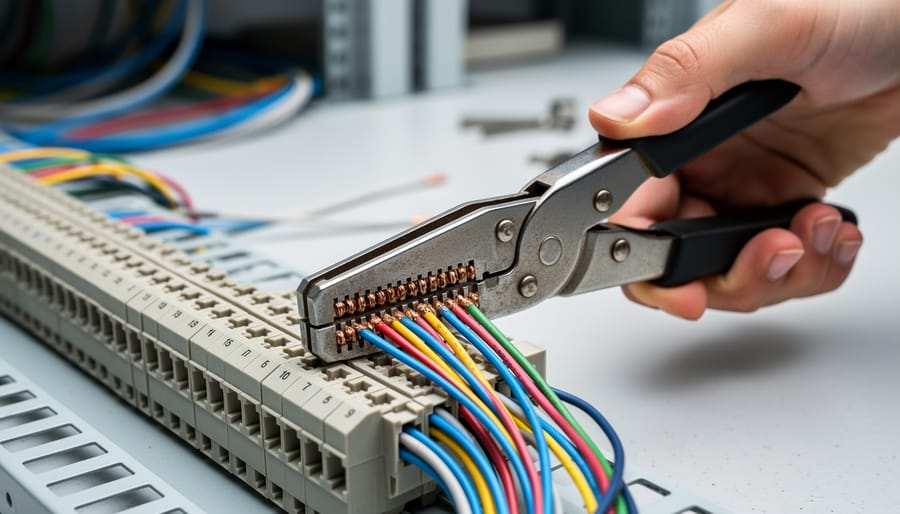
With the wires arranged according to your chosen standard, you’re ready to secure them into the keystone jack. This punch-down process is where precision matters most, improper technique can result in poor connectivity or damaged terminals.
Hold the keystone jack firmly with the terminals facing up. Position the first wire into its designated slot, matching the color code printed on the jack. The wire should rest fully in the groove without crossing over adjacent terminals.
- Insert the blade end of your punch-down tool over the wire and terminal, ensuring the cutting side faces outward (away from the center of the jack). Most tools have a small arrow indicating the cutting direction.
- Hold the tool perpendicular to the jack surface, a 90-degree angle ensures the wire seats properly without slipping sideways.
- Press down firmly and quickly in one smooth motion. You’ll hear a distinct click as the terminal pierces through the wire’s insulation and makes contact with the copper conductor. The same action trims the excess wire protruding beyond the terminal.
- Repeat for all eight wires, working methodically around the jack. Don’t skip wires or jump around randomly, follow the sequence to avoid mistakes.
- After completing all eight connections, inspect each terminal to confirm the wire is fully seated and flush with the plastic housing. Any wire standing proud of the terminal needs to be punched again.
If you’re using a punch-down tool without an integrated blade, you’ll need to trim excess wire manually with flush-cut snips after seating each wire. Work carefully to avoid pulling on already-terminated wires while trimming adjacent ones.
Step 5: Secure the Jack and Install the Faceplate
After punching down all eight wires, inspect the back of the keystone jack to confirm each wire is fully seated and trimmed flush. Any protruding wire ends could prevent proper insertion or create installation problems.
Align the keystone jack with the opening in the faceplate. Most faceplates have a rectangular slot designed to accept standard keystone jacks. Hold the jack at a slight angle and press firmly until you hear or feel a distinct snap, this indicates the retention clips have engaged properly. The jack should sit flush with the faceplate surface without any gaps.
Position the faceplate against the mounting bracket in the wall. Thread the provided screws through the faceplate holes into the bracket’s mounting points. Tighten screws evenly in a cross pattern to prevent warping the faceplate. Avoid overtightening, which can crack plastic faceplates or strip the bracket threads.
Verify the faceplate sits flat against the wall with no visible gaps. The jack port should align horizontally and appear centered. Gently tug the faceplate to confirm secure attachment, it shouldn’t move or flex.
Step 6: Label Your Installation
Proper labeling transforms a functional installation into a professional, maintainable network infrastructure. Label both ends of each cable run immediately after installation, when the routing is fresh in your mind, using a consistent naming scheme that makes sense to anyone who might service the network later.
At the wall jack end, write the label directly on the faceplate or use a small adhesive label indicating the jack’s purpose and number (e.g., “Office-J1” or “Bedroom-Port2”). At the source end, whether that’s a patch panel, switch, or router, use the same identifier so you can instantly match connections without tracing cables through walls.
Include the installation date and cable category (Cat5e, Cat6, etc.) on at least one label. For multi-port installations, create a simple diagram or spreadsheet documenting which room connects to which patch panel port. This documentation saves hours during future troubleshooting, expansion projects, or when someone else needs to work on your network. Store a copy digitally and tape a printed version inside your network cabinet.
Testing and Verifying Your Connection
After completing your wall jack installation, proper testing is critical to ensure reliable network performance. A cable tester is the most effective tool for verification, these devices check wire continuity, proper pairing, and correct pinout configuration. If you don’t have a dedicated network cable tester, you can perform basic checks with a simple continuity tester or multimeter, though these won’t catch all potential issues.
To use a cable tester, connect one end to your newly installed wall jack using a short patch cable, and connect the other end directly to the cable at its source point (router, switch, or patch panel). Quality testers will display eight sequential lights representing each wire in the cable. A proper connection shows all eight lights illuminating in the correct 1-2-3-4-5-6-7-8 sequence. If lights illuminate out of order, you’ve crossed wires during the punch-down process. Missing lights indicate broken conductors or incomplete connections at the terminals.
Common test results reveal specific installation issues:
- All lights sequential: Perfect installation with proper continuity and wire order
- Lights out of sequence: Wires punched into wrong terminals, requiring re-termination
- One or two missing lights: Incomplete punch-down or damaged wire during installation
- Intermittent lights: Loose connection or wire barely making contact in terminal
- Multiple pairs failed: Cable damage or incorrect standard used at one end
For a real-world connectivity test, plug a laptop or other network device into your wall jack using a standard patch cable. The device should immediately recognize the connection and obtain an IP address if connected to an active network. Open your network settings to verify link speed, a Cat6 installation on gigabit equipment should show 1000 Mbps, while Cat5e typically shows the same under ideal conditions. If you see 100 Mbps instead of 1000 Mbps on gigabit-capable equipment, you likely have a wiring fault affecting one or more pairs, even if basic connectivity works.
Troubleshooting Common Wiring Problems
After completing your installation, you may encounter issues that prevent your network wall jack from functioning properly. Understanding common problems and their solutions will help you quickly diagnose and fix wiring mistakes without having to redo the entire installation.
The most frequent problem is no connectivity at all, typically indicated by no link lights on connected devices. This usually stems from one or more wires not properly seated in the punch-down terminals. Remove the keystone jack from the faceplate and inspect each wire terminal closely, you should see the insulation slightly indented where the terminal blade has cut through. If any wire appears loose or not fully inserted, re-punch it firmly with your punch-down tool at a 45-degree angle. Check that you haven’t accidentally reversed the transmit and receive pairs, which happens when mixing T568A and T568B standards at opposite ends of the cable run.
Intermittent connections that drop randomly often indicate wires that are partially seated or have been damaged during installation. This problem can also occur if you’ve untwisted the wire pairs too far beyond the termination point, keeping untwisting to less than half an inch is critical for maintaining the cable’s electrical properties. Excessive untwisting allows crosstalk between pairs, causing packet loss and unreliable performance.
Why does my connection work but at reduced speeds?
Reduced speeds usually indicate that only some wire pairs are functioning correctly. Gigabit Ethernet requires all four pairs to work properly, while 100Mbps connections only use two pairs, so you might get a connection but not full speed if two pairs failed.
Can incorrect wire order cause intermittent problems?
Yes, while completely reversed pairs might still work at slower speeds, partially incorrect wiring creates impedance mismatches that cause random dropouts and unreliable performance.
How do I fix a wire that broke off during punch-down?
If a wire breaks during termination, you’ll need to cut back the cable about two inches, strip fresh outer jacket, and start the termination process again with intact wire pairs.
When your cable tester shows split pairs, where wires from different pairs are connected to create continuity but not proper pair relationships, the jack will fail or perform poorly despite showing connectivity. This subtle error occurs when you accidentally swap two wires that aren’t partners in the same twisted pair. Always refer to your wiring standard diagram and verify you’re following the correct color sequence before punching down each wire.
Wiring a network wall jack correctly sets the foundation for a reliable, high-performance network connection that’ll serve you for years. The process isn’t complicated, but precision matters, maintaining proper wire pairing, minimizing untwisting, and using consistent wiring standards throughout your installation directly impacts your network’s speed and stability.
Take a moment to document what you’ve accomplished. Label both ends of your cable run, note which standard you used (T568A or T568B), and photograph your work before closing up walls. This documentation becomes invaluable when troubleshooting issues months or years down the line, or when you’re expanding your network.
If you’re installing multiple jacks, consider terminating all your runs at a central patch panel. This approach simplifies network management and makes future changes straightforward. You’ll be able to reconfigure connections without touching the wall jacks themselves, and adding switches or network equipment becomes far more organized.
The skills you’ve developed here translate directly to other low-voltage wiring projects, from phone jacks to coaxial installations. You’ve taken control of your network infrastructure, and that investment in time and careful workmanship pays dividends every time you connect a device.