
Yes, your PS5 can take an M.2 SSD, and it works on both the standard console and the Digital Edition. The catch is that the drive has to meet a specific set of requirements, and the most common way to buy the wrong one is to overlook physical fit.
Here’s the short version. The PS5 supports PCI-Express Gen4x4 M.2 NVMe drives with a Key M connector, in capacities from 250 GB to 8 TB. Form factors 2230, 2242, 2260, 2280, and 22110 are all supported. Whatever you buy, including any heatsink, has to stay within 25 mm wide, 11.25 mm thick, and 30, 42, 60, 80, or 110 mm long. That heatsink allowance trips up more buyers than any spec on the box, because a drive can meet every electrical requirement and still not fit the bay.
Before you install anything, Sony says to update the console to the latest system software first. It takes a few minutes and saves troubleshooting later.
Below, we break down each requirement in a quick-reference table, explain how to check heatsink clearance, and put manufacturer speed claims, like the 7400MB/s sequential reads Lexar quotes for compliant Gen 4 drives, into realistic context.
What an M.2 SSD Does for Your PS5
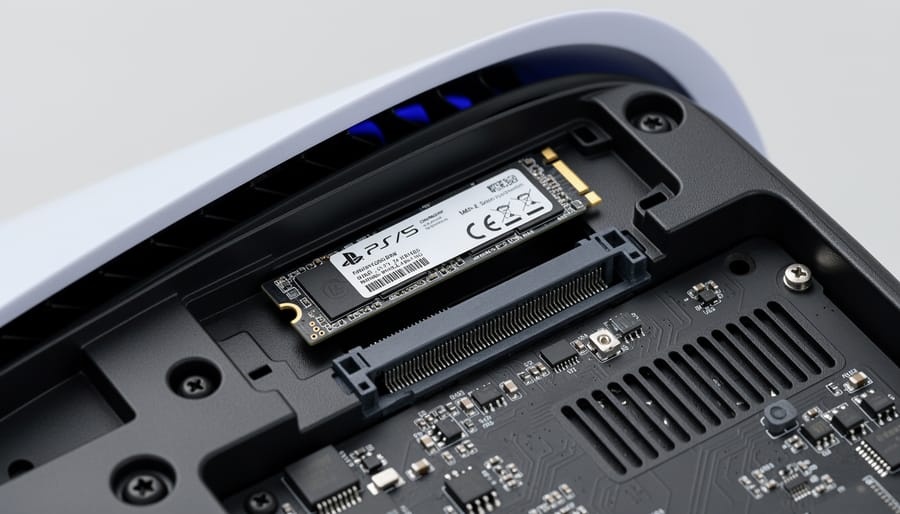
The PS5 has a built-in drive, but it fills up fast once you start installing modern games. The M.2 expansion slot is Sony’s answer: a spot inside the console where you can add a second solid-state drive and get more room for your library without replacing anything.
That slot works on both the standard PS5 and the PS5 Digital Edition. If you own either model, an M.2 SSD is a valid way to increase your total storage capacity.
The purpose here is simple. More space means you can keep more installed games on hand, so you’re not deleting one title to make room for another. That’s the core benefit, and it’s the reason most people go looking for a drive in the first place.
It’s worth keeping expectations grounded, though. Adding an SSD expands capacity, and that’s the verified upside. Any speed claims you see on a product listing come from the manufacturer, and we’ll look at how to read those later. What you can count on is that the drive has to meet specific requirements, since the PS5 supports PCIe Gen4x4 NVMe drives and not just any M.2 stick you happen to find.
The Core Requirements an M.2 SSD Must Meet
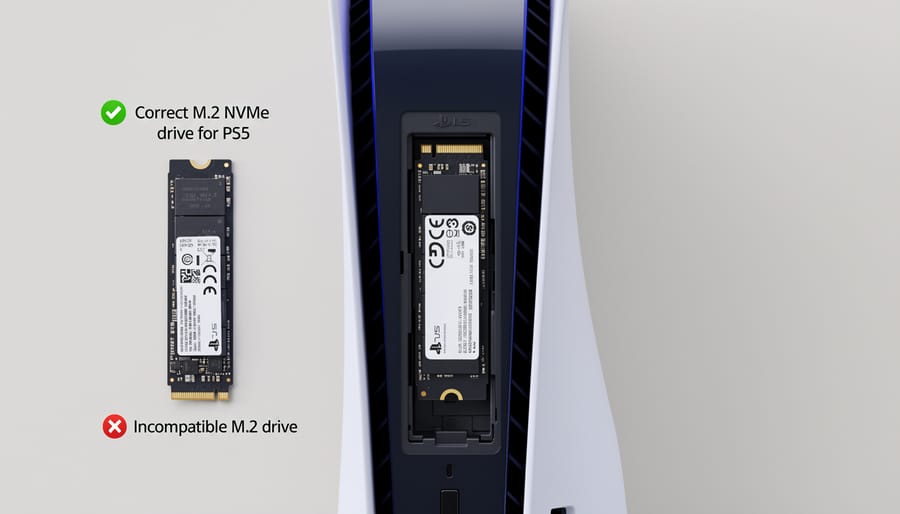
Interface and Key Type: PCIe Gen4x4 NVMe, Key M
A product listing for an M.2 drive can read like alphabet soup, so here is what the key terms mean for a PS5 buyer:
- PCIe Gen4x4
- The data pathway between the drive and the console. “Gen4” is the generation, and “x4” means four lanes working in parallel. The PS5 expects this combination.
- NVMe
- The protocol the drive uses to talk to the system. It is built for flash storage and moves data far more efficiently than older approaches.
- Key M
- The notch pattern on the connector edge. It determines whether the drive physically matches the slot and carries the faster PCIe lanes.
Here is how those requirements translate into what you should look for on a listing:
| Requirement | Supported value | What to look for on the product page |
|---|---|---|
| Interface | PCIe Gen4x4 NVMe | “PCIe 4.0 x4” and “NVMe” stated explicitly |
| Connector key | Key M | “M Key” or “Key M” in the specs |
| Capacity | 250 GB to 8 TB | A size within that range |
| Form factor | 2230, 2242, 2260, 2280, 22110 | One of those five numbers |
A listing that mentions SATA, or only Gen3 speeds, should raise a flag. Both are common in M.2-shaped drives, and neither matches what the PS5 supports. If a page doesn’t spell out the interface, treat that as a reason to keep looking.
Supported Capacities and Form Factors
The PS5 accepts drives from 250 GB up to 8 TB, so there’s plenty of room to grow whether you want a modest top-up or a large library. Capacity is the easy part. The form factor is where shoppers tend to slip.
M.2 form factors are named with a number that encodes the drive’s dimensions. The first two digits give the width in millimeters, and the remaining digits give the length. A 2280 drive is 22 mm wide and 80 mm long, which is the most common size you’ll see on listings. The PS5 supports five: 2230, 2242, 2260, 2280, and 22110. That covers drives from a compact 30 mm length up to a long 110 mm stick.
Here’s the catch. The size printed on the drive isn’t the whole story, because any heatsink attached changes the total footprint. The assembly must stay within 25 mm wide, 30, 42, 60, 80, or 110 mm long, and 11.25 mm thick. A drive with the right form factor can still fail to fit once a bulky heatsink is bolted on, so always check the combined dimensions.
Heatsinks and Physical Clearance: Where Fit Problems Start

The drive itself is only half the story. What has to fit inside the PS5’s expansion bay is the full assembly: the SSD plus whatever heatsink sits on it. A bare 2280 stick might clear the slot easily, then fail the moment you bolt on a chunky cooler.
Sony’s limits apply to that combined package. The M.2 SSD heatsink and drive assembly must be up to 25 mm wide, 30/42/60/80/110 mm long, and up to 11.25 mm thick. Those lengths line up with the five supported form factors (2230, 2242, 2260, 2280, and 22110), so the number in the drive’s name tells you the base length before any cooler is added. Width and thickness are where shoppers get caught, because a heatsink can easily exceed the width of the drive underneath it or stack several millimeters of height on top.
Thick aftermarket heatsinks are the easiest way to end up with an incompatible setup. Gaming-oriented listings often show tall fins or wide aluminum shrouds, and a design that works well in a desktop motherboard can simply be too big here. Good heat management is worth wanting, but it only helps if the finished assembly stays inside Sony’s envelope.
A few habits keep you out of trouble:
– Find the assembly’s stated dimensions (length, width, and height) on the product page, not just the drive’s form factor.
– Compare the thickness figure against the 11.25 mm ceiling first, since it’s the limit most often exceeded.
– Check that the width stays at or under 25 mm, especially with heatsinks that flare outward.
– If a listing only gives the bare drive’s size, look for the manufacturer’s spec sheet or ask the seller before buying.
– Be cautious about adding a separate heatsink to a drive that already has one, since the stacked height can add up quickly.
When the numbers aren’t published, treat that as a warning sign rather than an invitation to guess.
Prepare the Console: Update Before You Install
Sony’s guidance here is refreshingly simple: before you install a compatible M.2 SSD, make sure your PS5 is running the latest system software update. It’s a small step, but skipping it is the kind of avoidable mistake that can turn a straightforward upgrade into a troubleshooting session. Since the console’s firmware is what handles the new drive, you want that foundation current before anything physical happens.
Think of it as a short checklist you run through before opening the console. The order matters, because each step catches a problem the next one can’t fix:
- Check that your PS5 has the latest system software update installed, and apply it if it doesn’t.
- Confirm the drive meets every requirement: PCIe Gen4x4 NVMe, Key M, a supported form factor, and a capacity between 250 GB and 8 TB.
- Verify the total dimensions of the drive and heatsink assembly together, keeping it within 25 mm wide and 11.25 mm thick, at one of the supported lengths.
- Follow Sony’s official installation instructions for the physical install.
That last step deserves emphasis. The exact procedure for opening the console and seating the drive can differ between PS5 models, so rather than relying on a general walkthrough, use the manufacturer’s current instructions. They’re the authoritative source for the physical work.
Do the software update first and the verification second. If something doesn’t line up on the spec check, you’ll find out before the drive is anywhere near the console.
What Performance Numbers to Expect
Product listings love to lead with a big sequential-read number, so it helps to know what that figure actually tells you. Lexar says an M.2 NVMe SSD that meets every PS5 compatibility requirement uses PCIe Gen 4×4 and has sequential reads up to 7400MB/s. That’s the manufacturer’s own statement, and the “up to” matters: it describes a best-case ceiling under ideal conditions, not what you’ll see while a game loads or installs.
Think of that number as a sorting tool rather than a promise. If a listing shows a figure in that neighborhood alongside PCIe Gen 4×4 and a Key M connector, it’s at least aiming at the right class of drive. If the speed is far lower or the interface is vague, treat that as a warning sign. For a closer look at how a real drive in this class behaves, our breakdown of Gen 4 SSD performance shows what to look for beyond the headline number.
Capacity is the other thing worth checking. Lexar lists its PS5-compatible M.2 NVMe SSDs in 1TB, 2TB, and 4TB capacities, all comfortably inside the console’s supported range. Keep in mind that speed claims come from the seller, not from an independent test, and that raw speed is only one part of the picture. Fit, heatsink thickness, and interface matter just as much. Picking the right tool choice works the same way for any hardware project: match the part to the job instead of chasing the biggest number on the box.
I’m not quoting prices here, since they shift constantly. Check the current listing, then verify every spec against the requirements covered above before you buy.
Common Questions About M.2 SSDs and the PS5
Most buyers circle back to the same few worries before they commit, so here are direct answers based on the confirmed specs.
Does an M.2 SSD work with the PS5 Digital Edition?
Yes. M.2 SSDs can be used to increase storage on both the standard PS5 and the PS5 Digital Edition.
What capacities and form factors are supported?
Supported capacities run from 250 GB to 8 TB. The console accepts 2230, 2242, 2260, 2280, and 22110 form factors, provided the drive uses PCIe Gen4x4 NVMe with a Key M connector.
Do I need to update the console first?
Sony says the PS5 should have the latest system software update before you install a compatible M.2 SSD, so run the update before you open anything up.
What if the heatsink is too thick?
The drive and heatsink assembly must stay within 25 mm wide, 30/42/60/80/110 mm long, and 11.25 mm thick. An assembly beyond those limits is not a supported fit, so check total dimensions rather than the bare drive’s size.
Pricing is the one detail we can’t confirm here, and it shifts often enough that any figure printed today would age badly. Compare current listings from a few retailers instead, and judge each drive on whether it meets every requirement above, not on cost alone.
Buying an M.2 SSD for your PS5 comes down to matching a short list of specs, and none of them is hard to check. Look for PCIe Gen4x4 NVMe with a Key M connector, a supported form factor (2230, 2242, 2260, 2280, or 22110), and a capacity between 250 GB and 8 TB. Then measure the whole assembly, because a drive with a heatsink attached has to stay within 25 mm wide and 11.25 mm thick, with the right length for its form factor.
Before you install anything, update the console to the latest system software. It’s a small step that heads off avoidable problems.
Take a few minutes with the product listing before you buy. Confirm every requirement line by line, and treat any listing that skips the interface, key type, or heatsink dimensions as a reason to keep looking. A drive that checks every box will give you far more room for your games, and you’ll know it fits before it arrives.